How to Create an Invoice PDF Online
Learn how to create a polished invoice PDF online in minutes with invoicemon — no signup, no install. Step-by-step guide from blank invoice to Save as PDF.
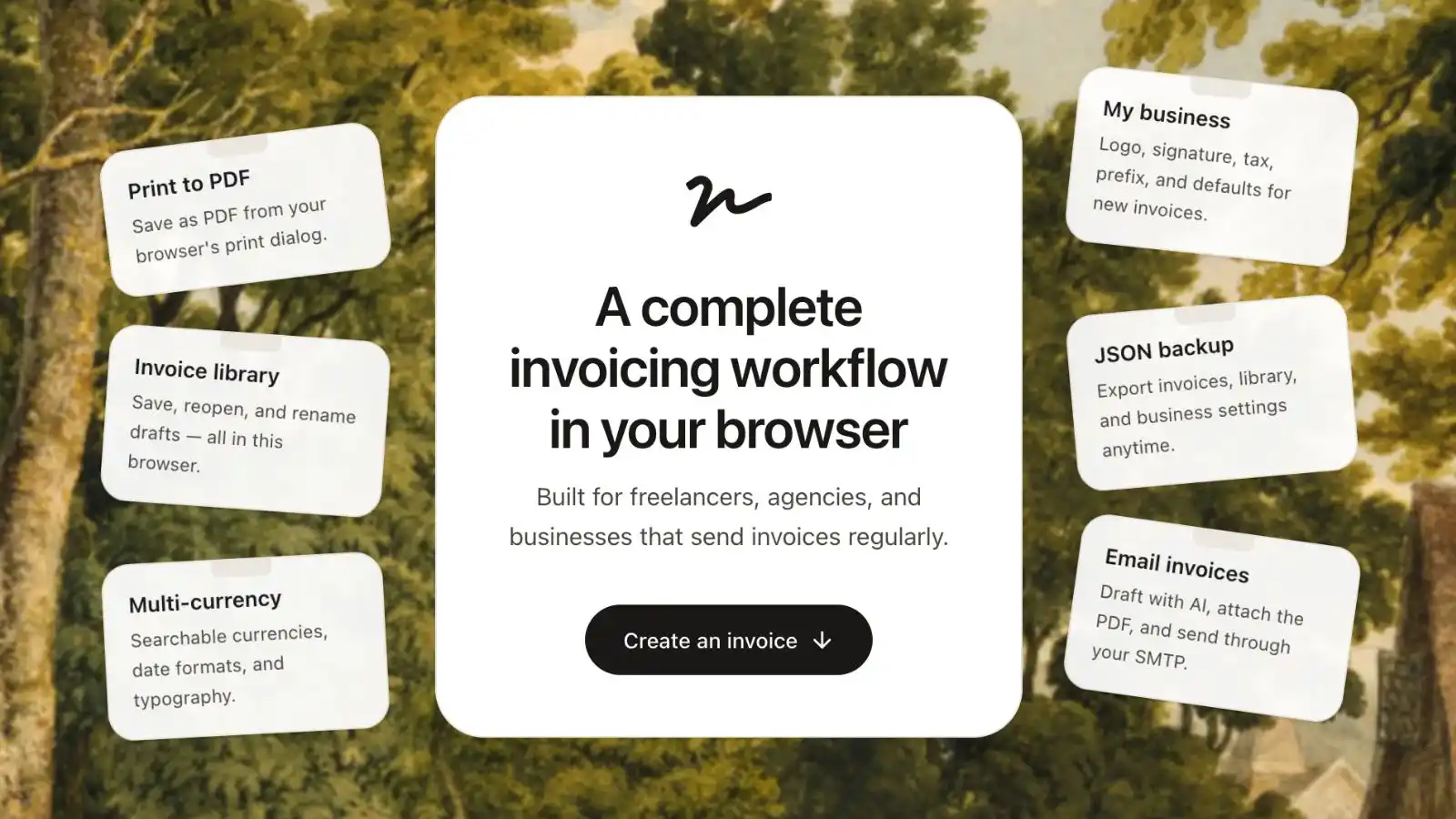
You need a professional invoice PDF today — not after creating an account, not after downloading software, and definitely not after wrestling with a spreadsheet that never quite lines up. Whether you're a freelancer sending your first bill, a contractor wrapping up a job, or a small business owner who just needs a clean PDF to email a client, the fastest path is a browser-based invoice generator that exports a print-ready document.
This guide walks you through exactly that using invoicemon: a free invoice generator that runs entirely in your browser, saves drafts locally on your device, and exports polished PDFs through your browser's print dialog. No signup required for the core workflow.
Why Create an Invoice PDF Online?
A PDF is the standard format for sending invoices. It preserves your layout, fonts, and branding on any device — Windows, Mac, phone, or tablet. Your client sees the same polished document you designed, which reduces confusion and speeds up payment.
Creating that PDF online has a few practical advantages over desktop accounting software or Word templates:
- No installation — open a tab, start invoicing.
- No account wall — invoicemon lets you build and export invoices without signing up.
- Instant preview — see exactly what the PDF will look like before you save it.
- Your data stays local — invoices and settings are stored in your browser unless you choose to export or email them.
If you've outgrown scribbled totals on a napkin but don't need a full accounting suite, an online invoice-to-PDF workflow is the sweet spot.
What You'll Need Before You Start
Gather these details once and the actual invoice takes a few minutes:
- Your business info — name, address, email, phone (and logo if you have one).
- Client details — who you're billing and where to send the invoice.
- Line items — description, quantity, and rate for each service or product.
- Payment terms — due date, notes about how to pay, and any tax or discount rules.
That's it. You don't need a merchant account or payment processor to create the PDF — you're producing the document your client will pay against.
Step 1: Open invoicemon and Start a New Invoice
Go to invoicemon.com and click Create an invoice on the home page. The editor opens in a floating window with a familiar menu bar — File, Edit, Export, and more.
You're looking at a live invoice canvas, not a static template. Every field is editable: your logo, title, bill-from and bill-to blocks, line items, tax, discount, shipping, notes, and signature.
Tip: If you return later, use File → Open to pick up a saved draft from your local invoice library. invoicemon stores saved invoices in your browser so you can revise and re-export without starting over.
Step 2: Fill In Your Invoice Details
Work through the document top to bottom. Here's what each section does in invoicemon:
Your branding
Add your logo (upload an image or paste a URL) and set the invoice title and subtitle. Choose Typography from the menu bar — sans-serif or serif — to match your brand voice. The letterhead-style layout keeps everything readable on screen and in print.
Bill from and bill to
Enter your details in the From block and your client's in the To block. Clear contact information prevents back-and-forth before payment.
Invoice metadata
Set the invoice number, issue date, and due date. Use the Date menu to pick a date format that fits your region (US, UK, ISO, and more). If you invoice internationally, switch Currency from the menu bar — invoicemon supports multiple currencies.
Line items
Use Edit → Add Line Item for each service or product. Each row has a description, quantity, and rate; totals calculate automatically. Add as many rows as you need.
Totals, tax, and notes
Apply a discount percentage, tax rate, and shipping if relevant. Use the Notes field for payment instructions — bank details, PayPal link, or a thank-you message. A clear "pay by" date in the notes reinforces the due date at the top.
Signature (optional)
Edit → Add Signature opens a drawing pad or upload option. A signature adds a professional finish, especially for service contracts and consulting work.
Step 3: Preview Your PDF
Before exporting, open Edit → PDF Preview. A print-preview window shows your invoice exactly as it will appear on paper — A4 proportions, margins, and typography included.
Scroll through and check:
- Spelling and client name
- Line item descriptions and amounts
- Tax and total math
- Logo and signature placement
Fix anything on the main editor, then preview again. This step saves you from sending a PDF you'll have to replace.
Step 4: Save as PDF
When the preview looks right, go to Export → Save as PDF. invoicemon opens your browser's print dialog with the invoice formatted for print.
Choose Save as PDF (or Microsoft Print to PDF on Windows) as the destination. Pick a filename — invoicemon suggests one based on your invoice number — and save.
You now have a standard PDF invoice ready to attach to an email, upload to a client portal, or archive for your records.
Step 5: Save Your Work Locally (Optional but Recommended)
PDF export is one-off unless you keep the source. Use File → Save or File → Save As to store the invoice in invoicemon's local library. Next time you bill the same client, open the draft, update dates and line items, and export a fresh PDF in seconds.
Your saved invoices live on your device in browser storage — not on invoicemon's servers. That's great for privacy; just remember to export backups if you switch browsers or clear site data.
Going Further: Business License Features
The free workflow — create, preview, save locally, export PDF — covers most freelancers and one-off invoices. If you bill regularly, invoicemon's business license adds:
- My business defaults — pre-fill your from-address, logo, and common settings on every new invoice.
- JSON export/import — back up invoices, business settings, and program preferences.
- Custom labels — rename fields to match your industry wording.
- Email — draft invoice emails with AI and send via your own SMTP server.
You can start free, export PDFs immediately, and upgrade when repetition makes the extra tools worth it. Use Get license key in the menu bar when you're ready.
Tips for a PDF Invoice That Gets Paid Faster
A pretty PDF isn't enough — clarity wins payments:
- One invoice, one job — don't combine unrelated projects unless your contract says so.
- Match the contract — line items should reflect what you agreed to deliver.
- Put the total and due date where they can't be missed — invoicemon's layout already emphasizes both.
- Name the PDF file clearly — e.g.
Invoice-1042-Acme-Corp.pdfinstead ofdocument.pdf. - Send promptly — export the PDF the same day you finish the work while context is fresh.
Frequently Asked Questions
Is invoicemon really free for PDF export?
Yes. You can create invoices, preview them, save drafts locally, and export PDFs without paying or creating an account. Advanced backup, business defaults, and email features require a business license.
Do I need to install anything?
No. invoicemon runs in Chrome, Safari, Firefox, Edge, and other modern browsers. PDF export uses your browser's built-in print-to-PDF capability.
Where is my invoice data stored?
On your device, in browser local storage. invoicemon does not require cloud signup for the core editor. Licensed users can export JSON backups for safekeeping.
Can I use invoicemon in languages other than English?
Yes. The app supports multiple locales (German, French, Spanish, Japanese, Portuguese, Chinese, and more) from the Language menu. The blog is English-only, but the invoice tool itself is localized.
What if my PDF looks cut off?
Use PDF Preview first and ensure you're saving via the print dialog's PDF option, not a screenshot. If margins look tight, try zooming the preview to 100% before printing. Most issues come from browser print settings, not the invoice layout.
Create Your Invoice PDF Now
You don't need complicated software to produce a professional invoice PDF. Open invoicemon, fill in your details, preview the layout, and hit Export → Save as PDF. In minutes you'll have a document you're proud to send — and your client will have everything they need to pay you.
Start with a blank invoice, or load a saved draft if you've used invoicemon before. Either way, your PDF is a few clicks away.